100% OFFLINE|NO BANK LOGIN|ZERO ADS

Add expenses in seconds.Just say it.

Say it, type it, or share a UPI screenshot, and RupeeTalk records it on your phone. See where your money goes each month. No internet, no account, no bank login.

0 KB
Uploaded to cloud
84+
Bank SMS formats
< 1 sec
Voice to entry
RupeeTalk home screen

Most expense apps get dropped because entering things is a chore.

RupeeTalk tracks your daily spending, and entering is the part we made shortest.

  1. 1

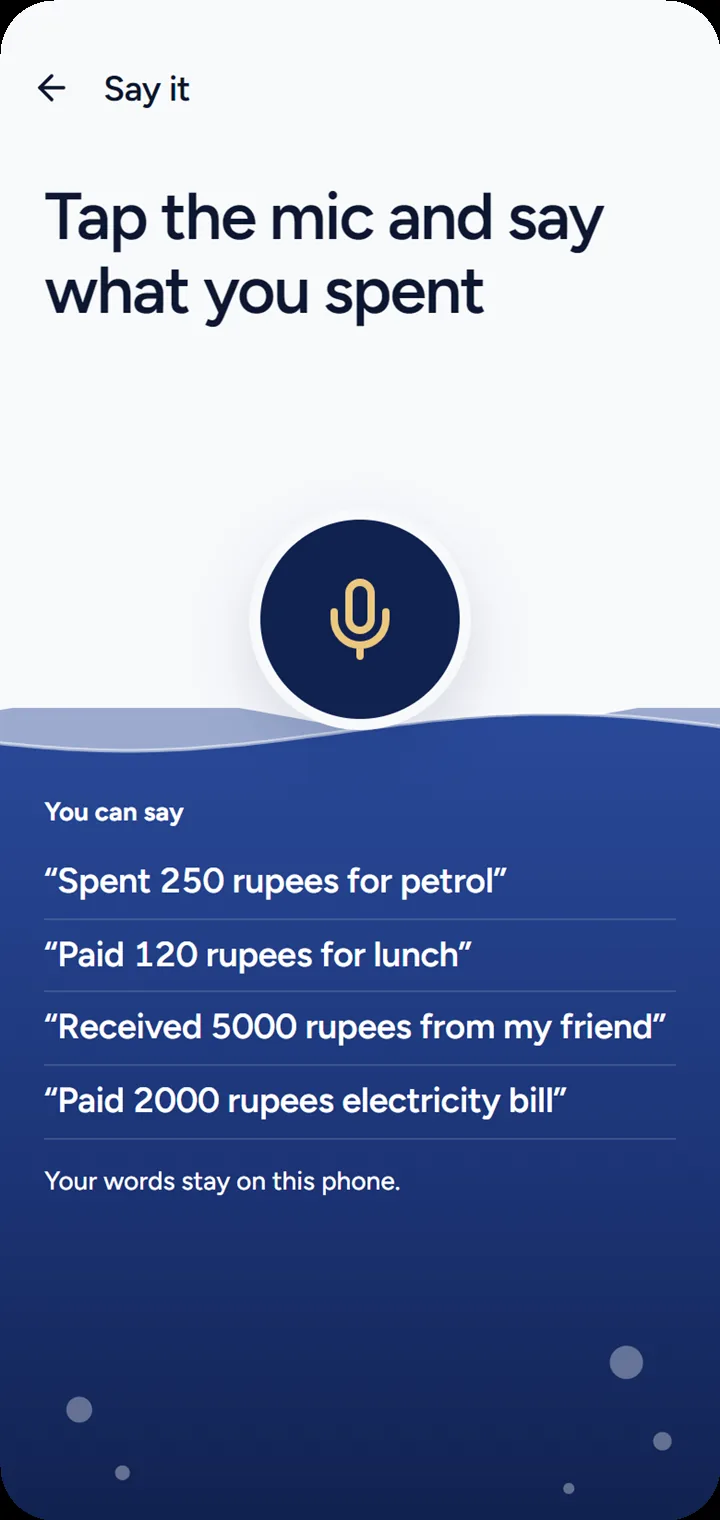
    Tap the mic

    It sits in the middle of the menu, so it’s one tap away on every screen.

  2. 2

    Say what happened

    “Paid 120 rupees for lunch.” “Received 5000 rupees from my friend.”

  3. 3

    Check and save

    RupeeTalk fills in the amount and suggests a category. You pick how you paid and save.

The Say it screen listing example phrases

See RupeeTalk in under a minute

Every way to add an expense, and what the app does with it, with the sound on.

Widgets on your home screen

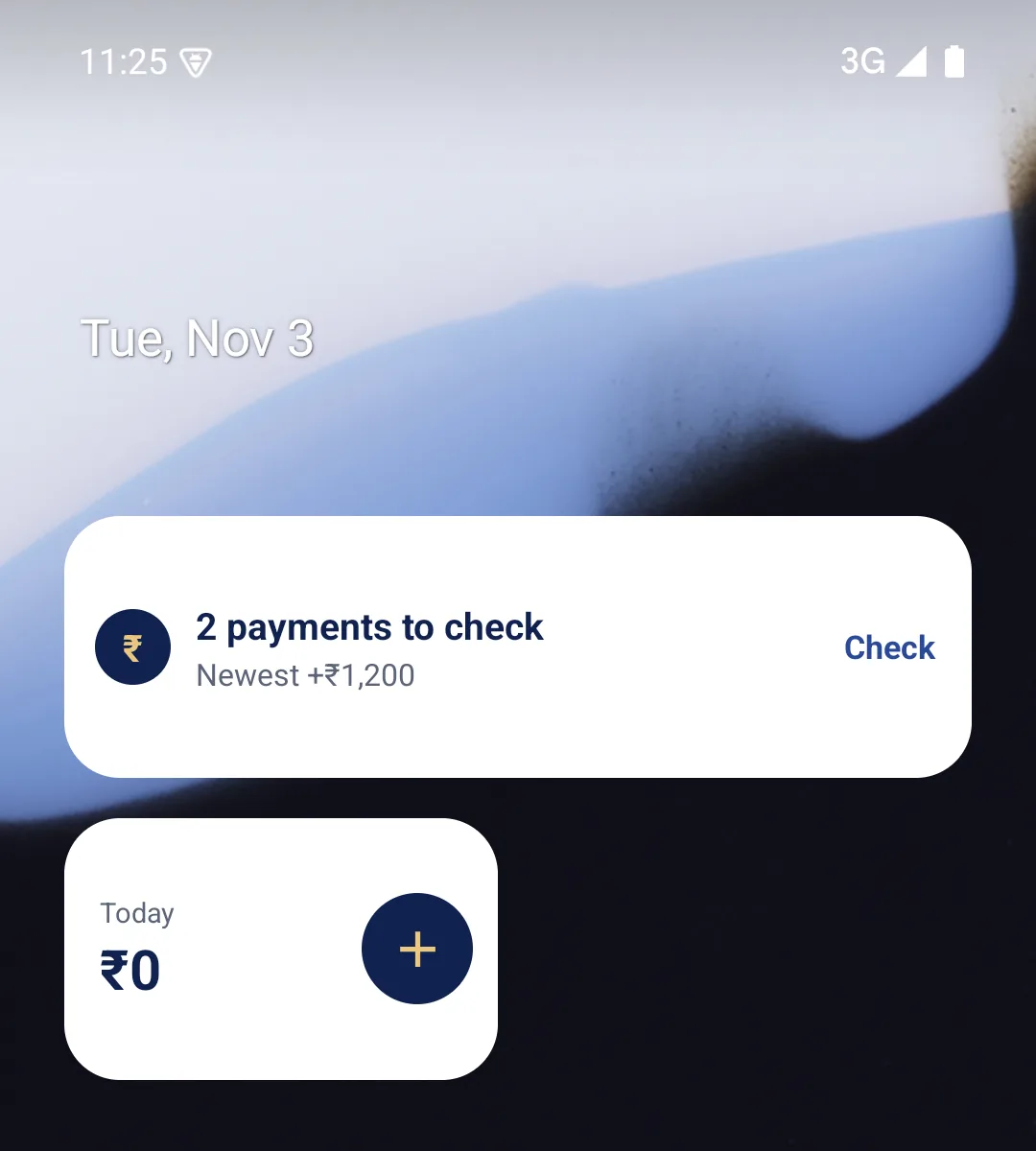
Three widgets keep the month in view without opening the app: the category budgets closest to their limit, today’s spending with an Add button, and the payments waiting to be checked. They follow your phone’s light or dark mode and respect Hide amounts.

RupeeTalk home-screen widgets showing payments to check and today’s spending

A notification the moment money moves

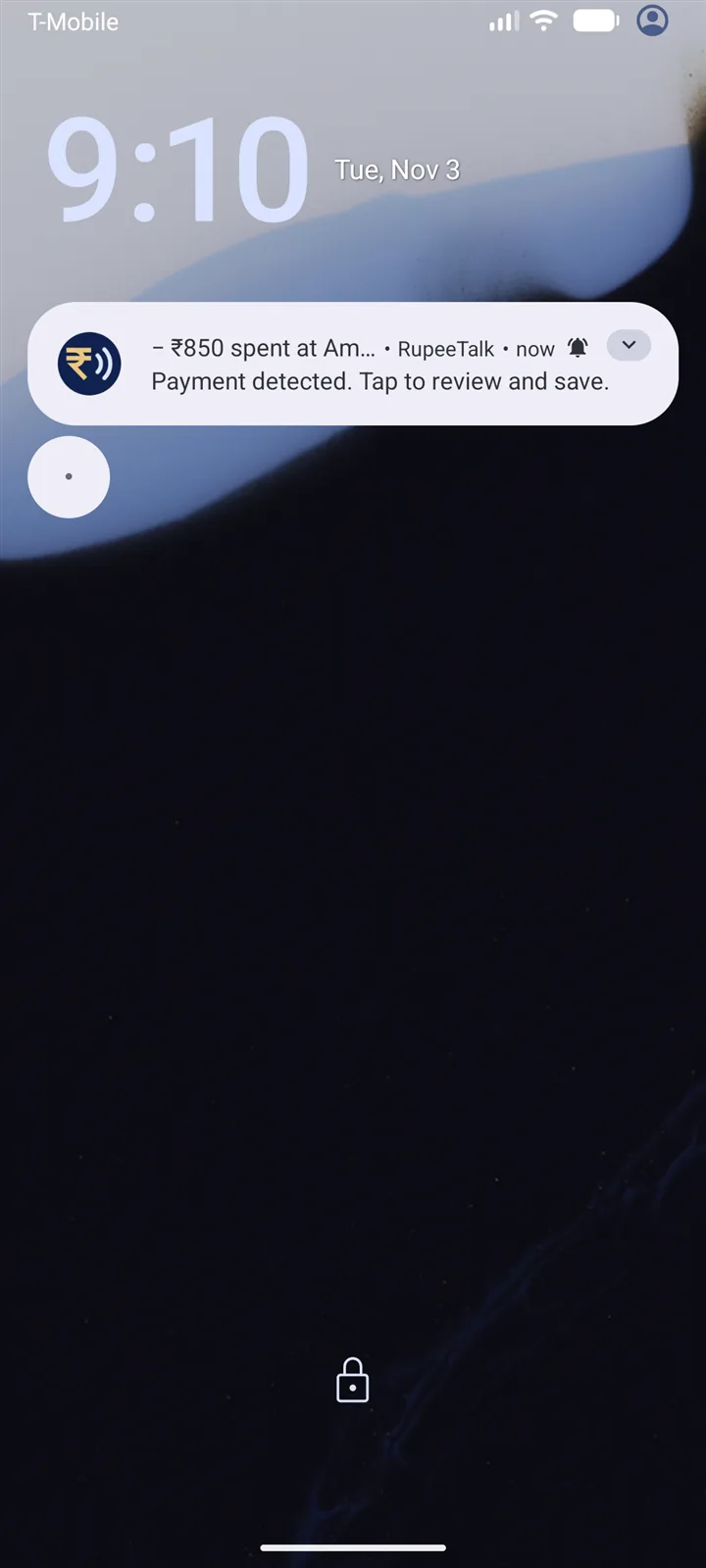
When a bank alert arrives, RupeeTalk reads it and shows a notification with the amount and who it went to or came from, right on your lock screen. Tap Review to check it and save, or leave it for later. Nothing is recorded until you tap Save.

RupeeTalk notification showing a payment detected with a quick Review action

See your month at a glance

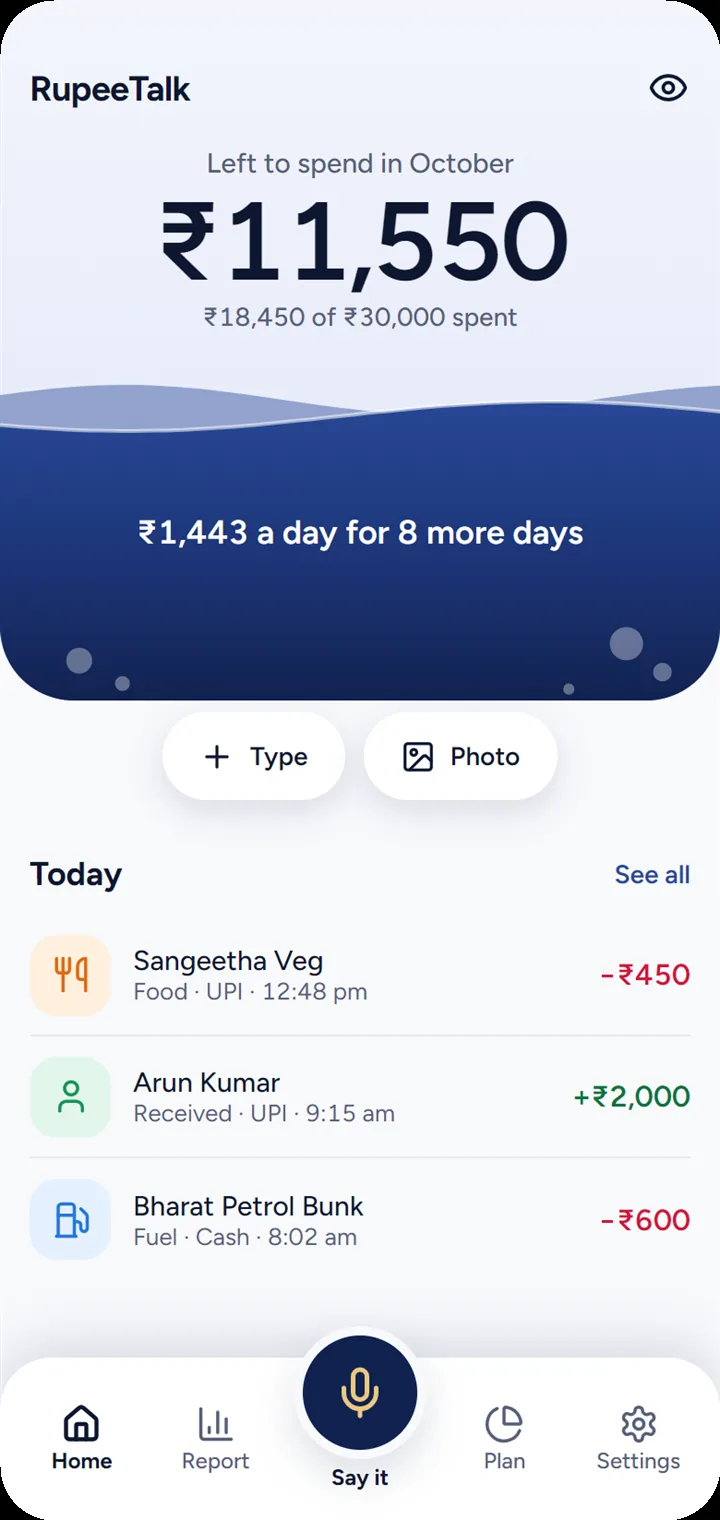
The jar on Home empties as you spend against your monthly limit, so you know where you stand before you open a single list.

Home screen showing ₹11,550 left of a ₹30,000 limit as a jar of liquid, using sample entries

Or type it in seconds

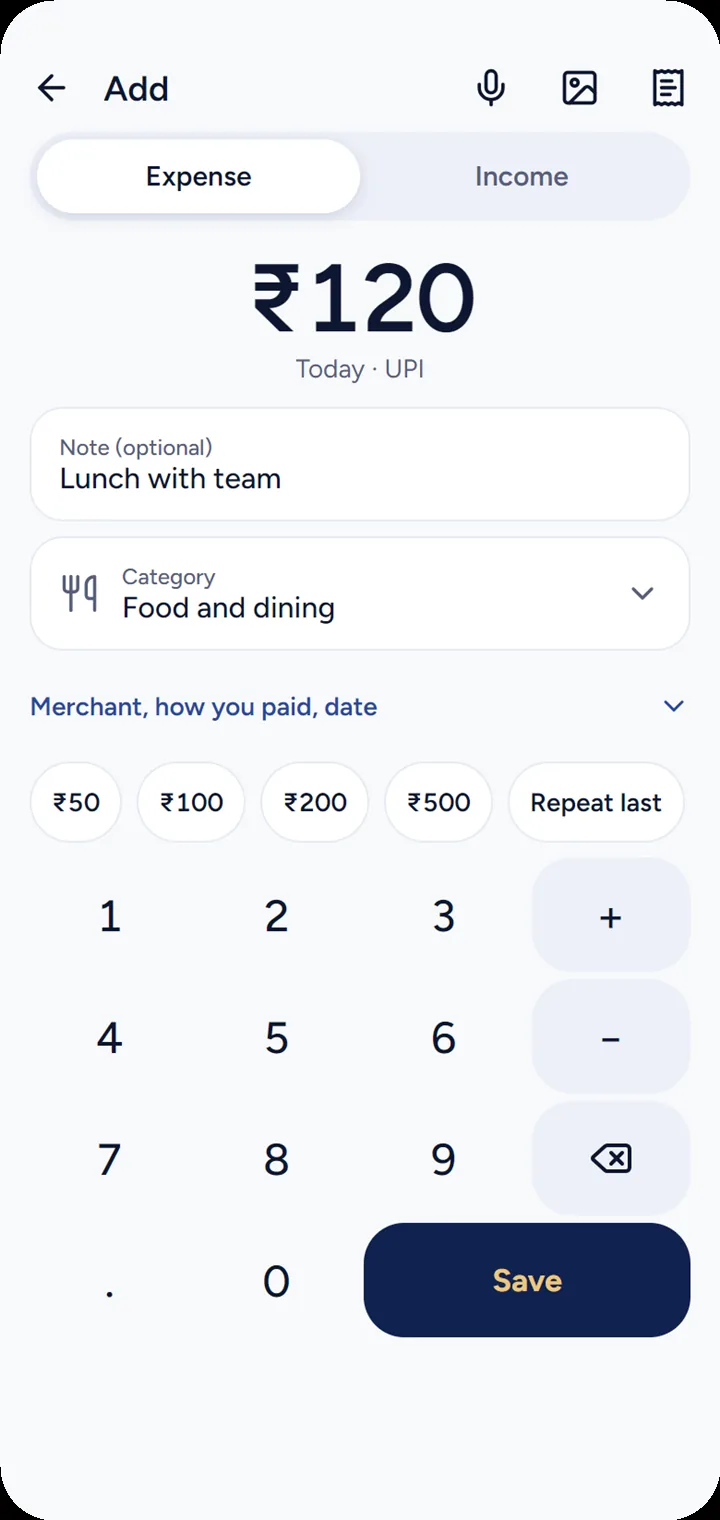
Enter the amount, pick a category and save. Your usual categories come first, and quick amounts save you the typing.

The Add screen with a keypad, quick amounts and category buttons

Find any entry

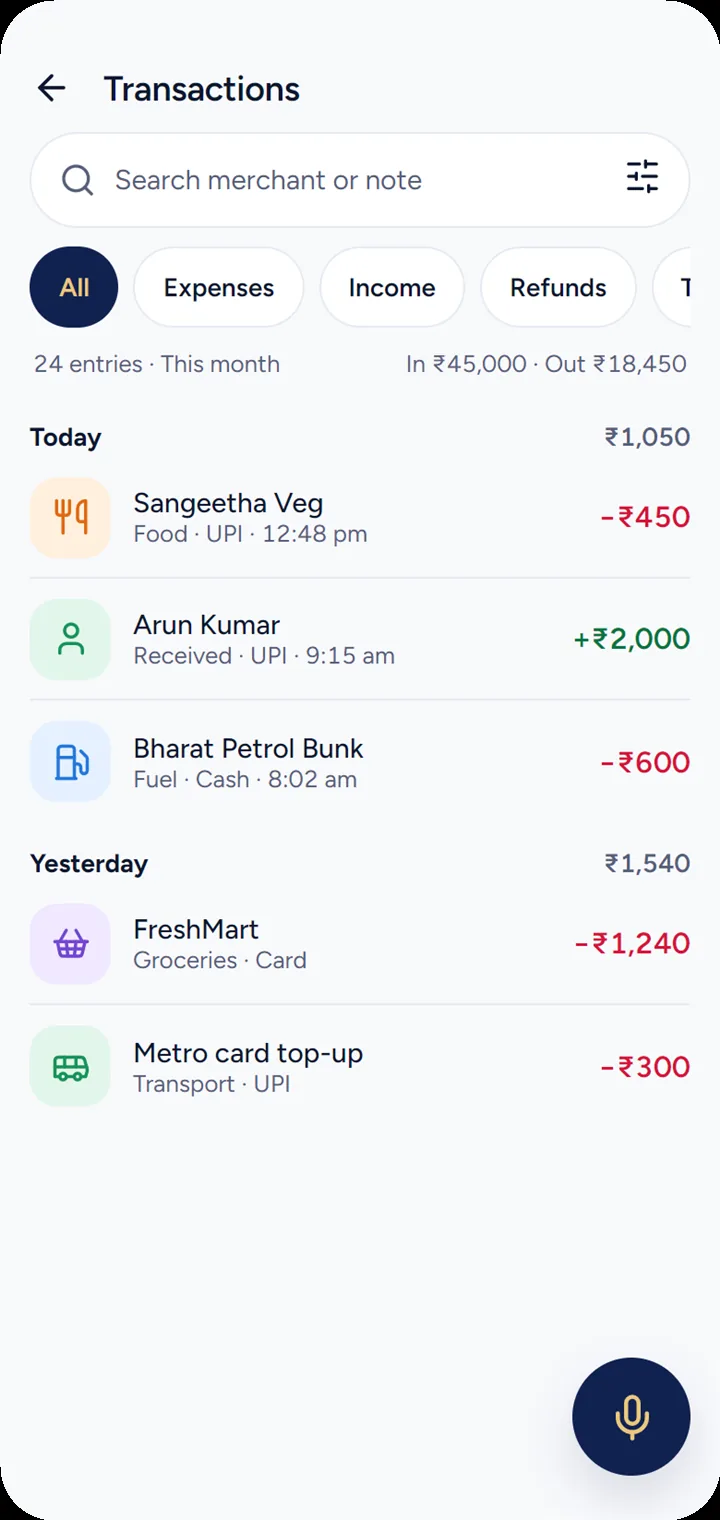
Search by merchant or note, and filter by expenses, income, refunds or month. Every entry can be edited or repeated for today.

The Transactions list grouped by day, with search and filters, using sample entries

Know where it went

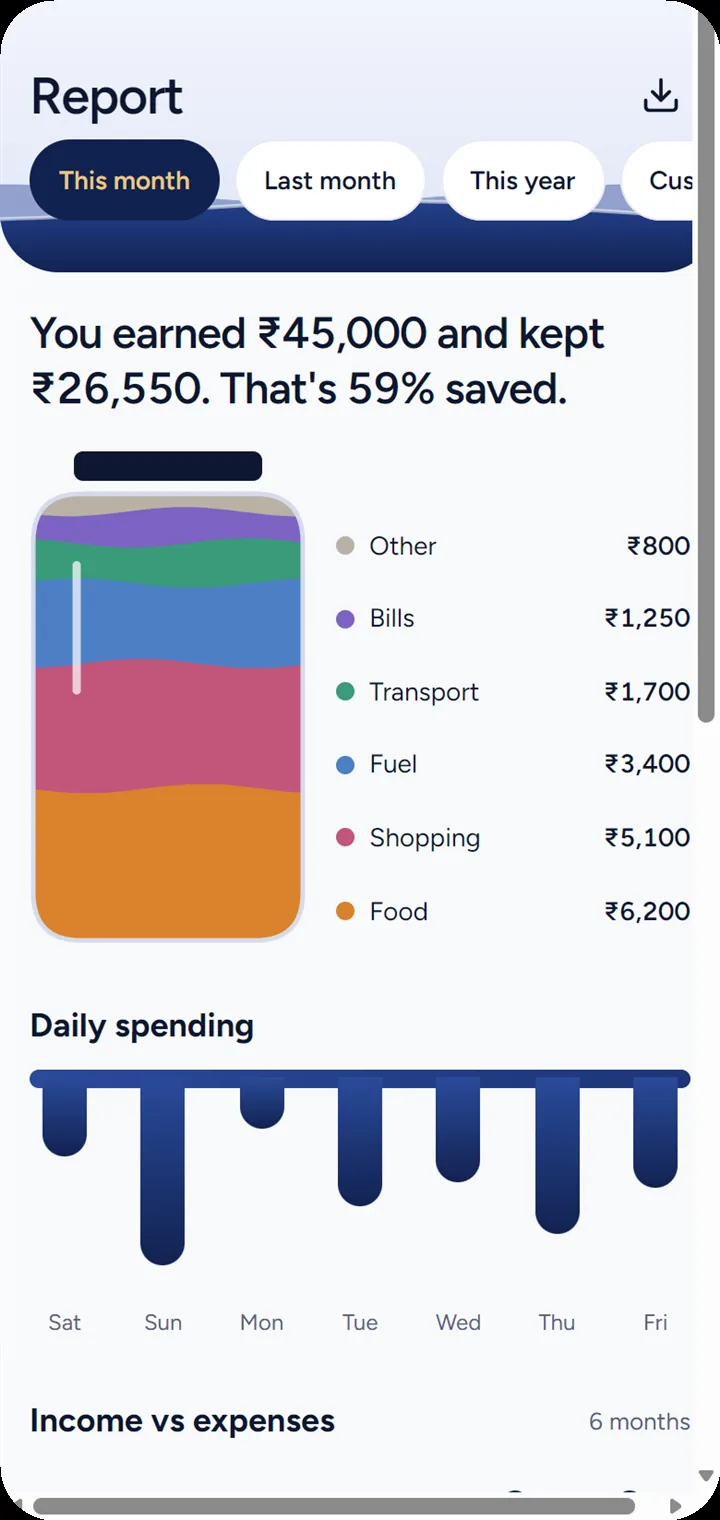
The jar splits into layers for your top categories, with what you earned and kept in one plain sentence.

The Report screen with a jar split into spending categories, using sample entries

Share your month as a picture

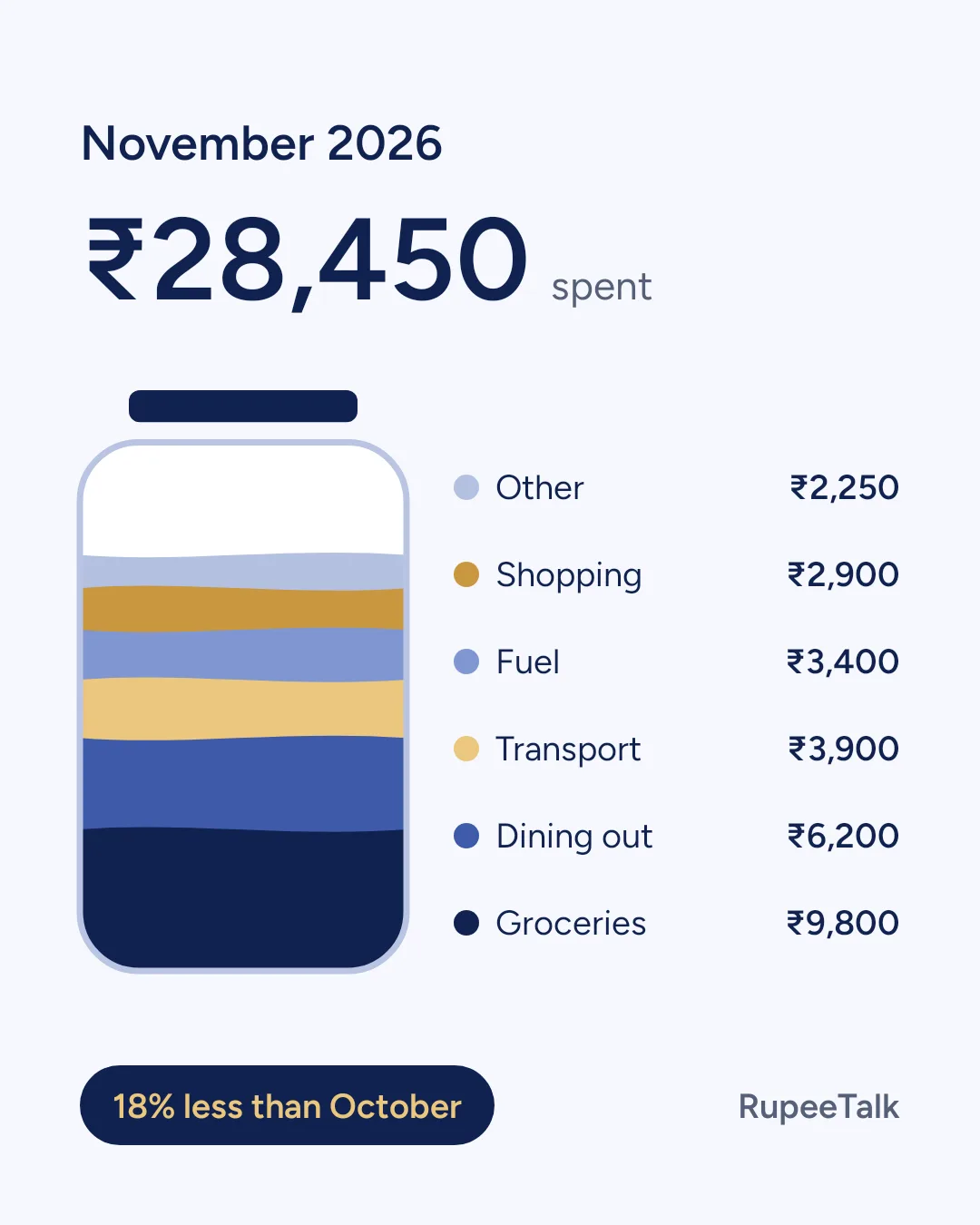
On Report, tap Share and RupeeTalk draws your month as a jar: the total, your top five categories and how it compares with the month before. Send it from your phone’s share menu. With Hide amounts on, it shows percentages and no rupee figures.

A shareable picture of November’s spending as a jar in six layers, using sample entries

Recurring payments, tracked

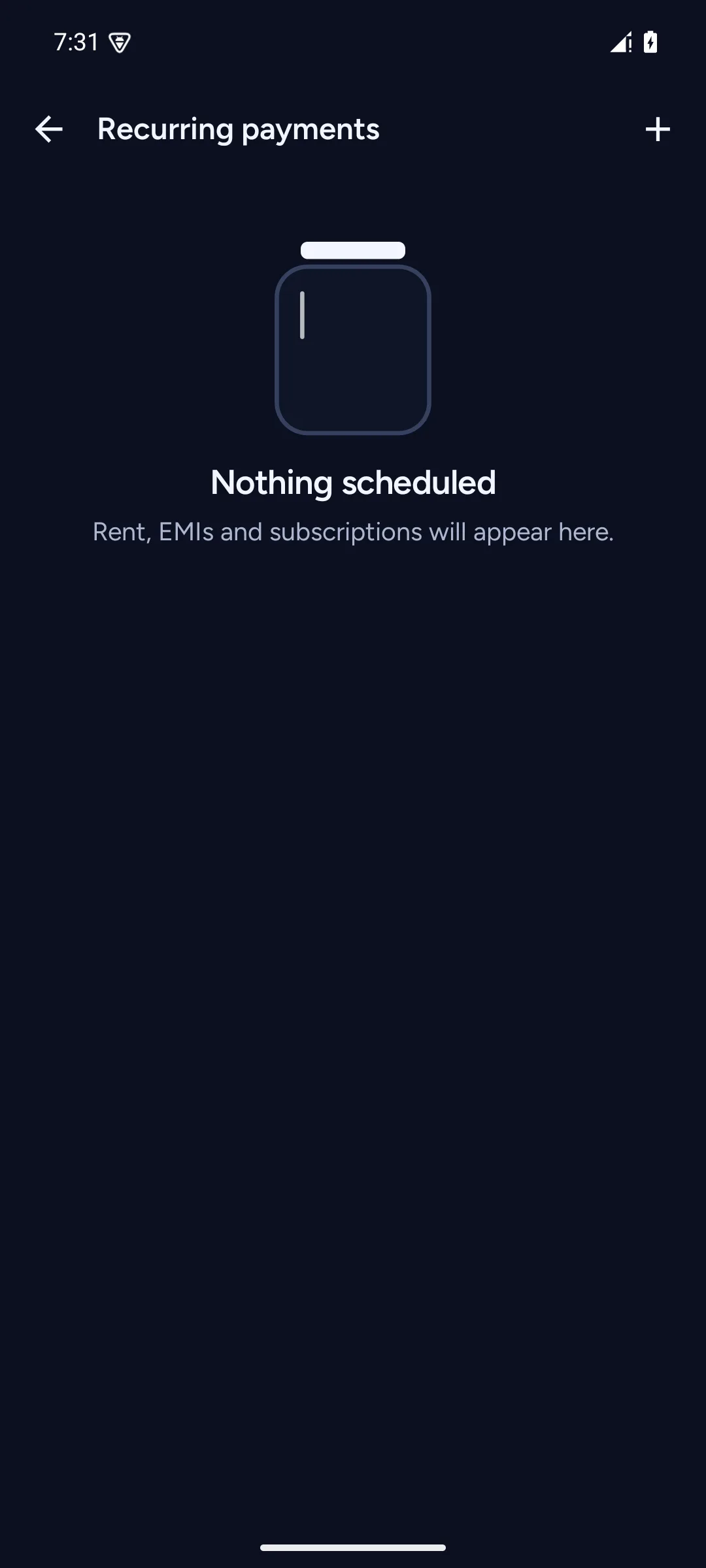
Add your rent, EMI and subscriptions once. RupeeTalk keeps them in a list you can check each month instead of hunting for them in your entries.

The Recurring payments screen with an empty jar and the message Nothing scheduled

Your records, backed up

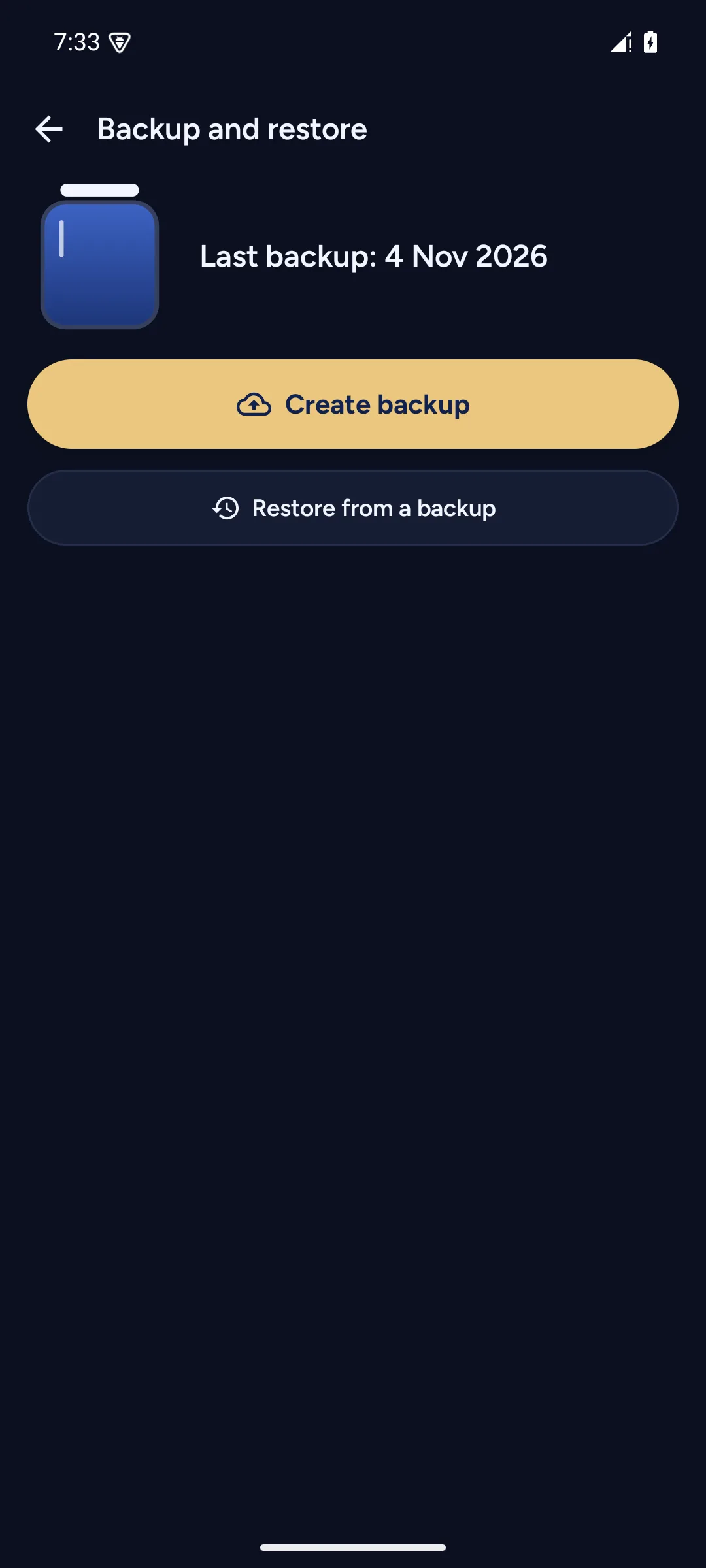
Create an encrypted backup to any folder or cloud drive on your phone. Restore it after reinstalling or moving to a new phone. The backup needs a PIN you set; nothing leaves the device without it.

Backup and restore screen showing last backup date with Create backup and Restore from a backup buttons

Three colour themes, light or dark

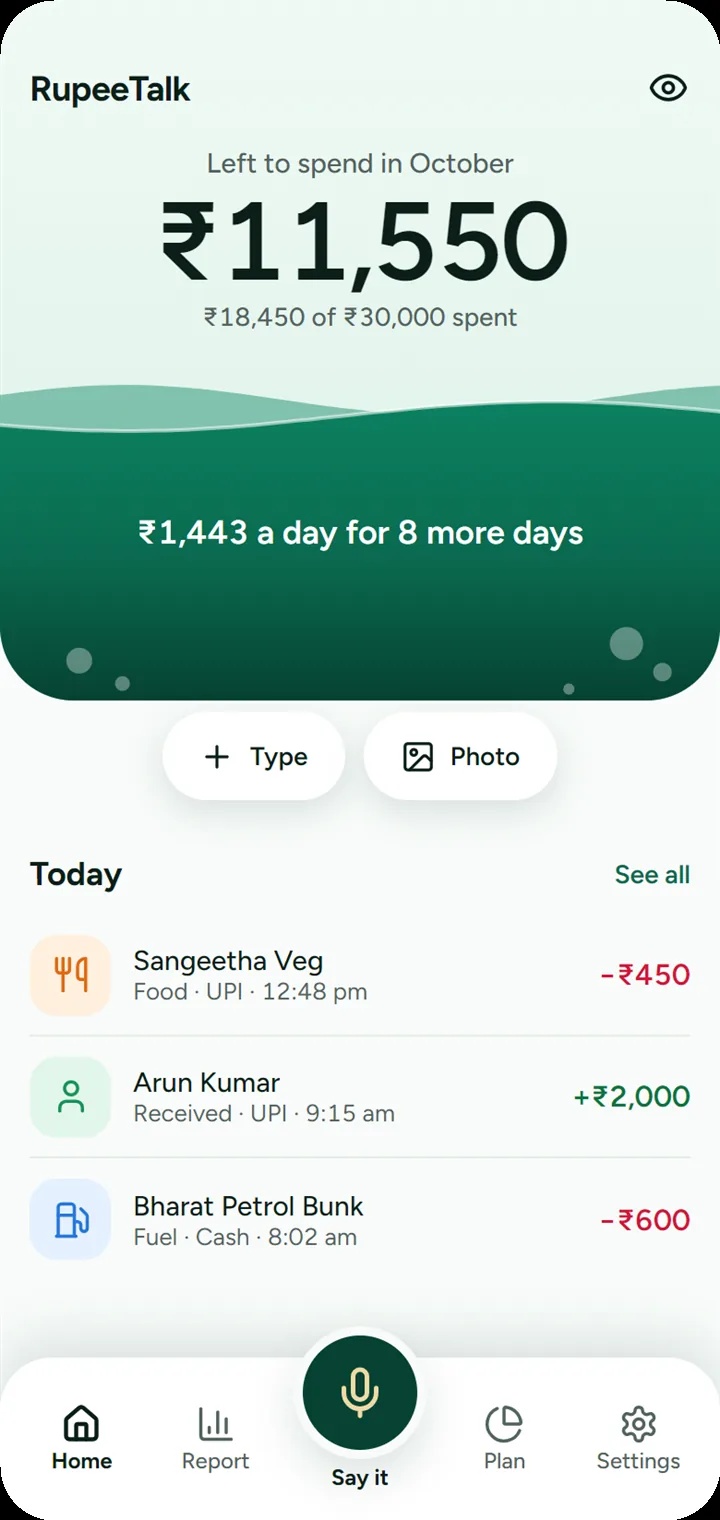
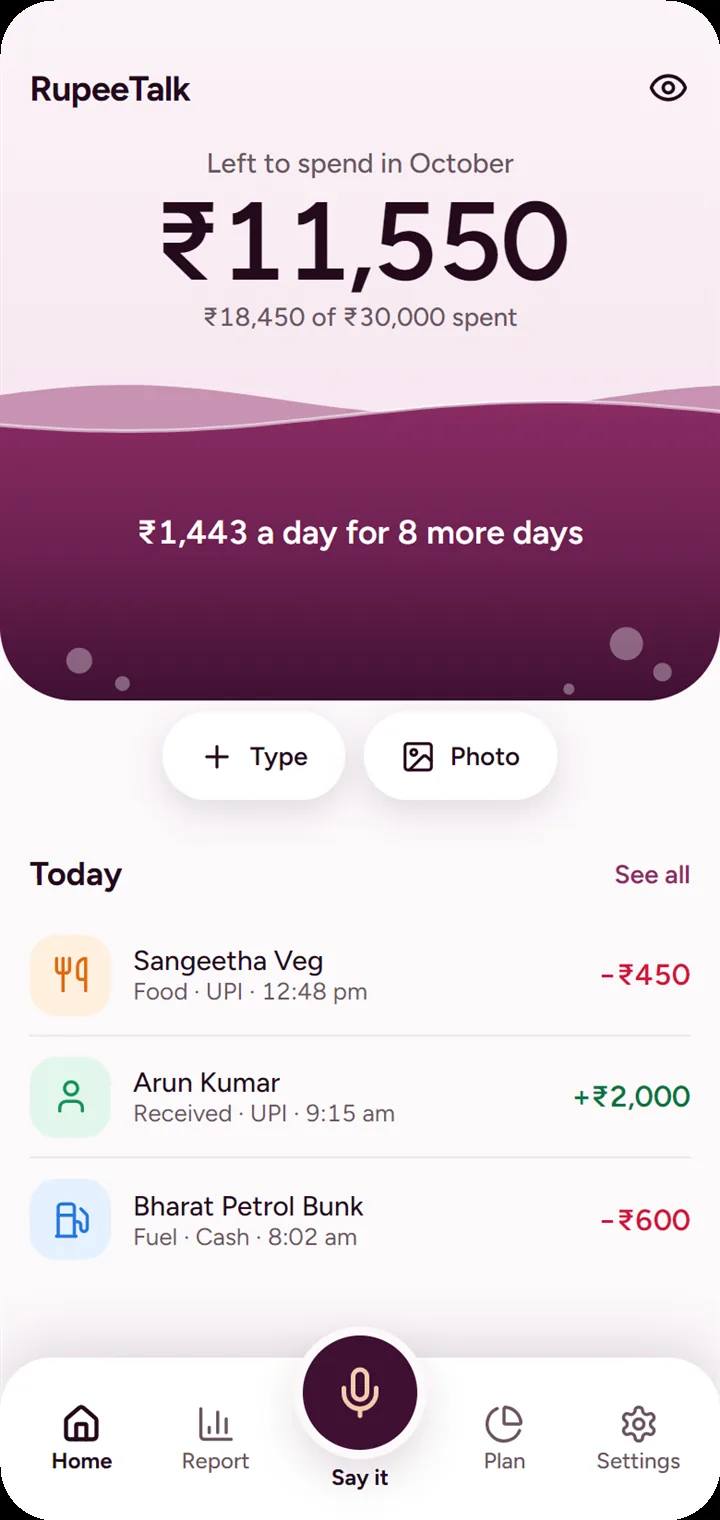
Sapphire, Emerald and Wine. Change it any time in Settings.

Emerald theme: a green jar on the Home screen
Sapphire theme: a deep blue jar on the Home screen
Wine theme: a deep red jar on the Home screen

How to use RupeeTalk

Pick a task to see the steps.

Say it

  1. Tap the mic in the middle of the menu.

  2. Say what happened, like “Paid 120 rupees for lunch”.

  3. Check the amount and category, then tap Save.

The Say it screen listing example phrases

Your spending is nobody else’s business.

No internet access

The app doesn’t have Android’s internet permission, so it can’t send your records anywhere. Only if you agree, voice can use your phone’s own speech service, which may go online.

No account

No sign-up, no email and no phone number.

No bank login

It never asks for your UPI PIN, banking password, OTP or card CVV.

Encrypted records

Your entries are stored in an encrypted database, with the key held in your phone’s secure storage.

Works in flight mode

Typing, budgets and reports all work without a signal.

Light on your battery

Designed to be fast and lightweight. No heavy background processing, no ad tracking, and the mic listens only after you tap it.

Questions

What is RupeeTalk?

RupeeTalk is a free expense tracker app for Android phones. You record what you spend and earn by speaking, typing or sharing a payment screenshot, and it shows where your money went each month, with budgets and reports. It works without internet and needs no account.

Which phones does it work on?

Android 8 or newer. On Android 12 or newer with offline English speech, voice uses that first. Otherwise RupeeTalk asks before using your phone’s own speech service, usually Google, which needs internet and may send what you say online. You can turn that off, and typing always works.

Do I need to connect my bank or UPI app?

No. There’s nothing to connect and no account to link. RupeeTalk includes optional Bank payment alerts: it notices a payment from your bank’s SMS alert and adds it to a private list for you to check and save. It stays completely off until you choose to turn it on, and nothing is recorded until you approve it.

Can I add a payment from a UPI screenshot or a receipt?

Yes. Share a payment screenshot or a bill to RupeeTalk and it opens in a small sheet over the app you shared from. You can also pick one from your gallery or take a photo of a receipt. It’s read on your phone, and nothing is saved until you check it and tap Save. Reading real screens and bills is still being tested, so check the details.

What about budgets, reports and export?

Budgets, goals and reports work today, and three home-screen widgets show category budgets, today’s spending and payments to check. From Report you can export a PDF statement or an Excel workbook for any month, year or date range.

Can I share my spending with someone?

Yes. On Report, tap Share. RupeeTalk draws a picture of the month and hands it to the app you choose from your phone’s share menu. RupeeTalk itself still has no internet access; the app you pick does the sending. With Hide amounts switched on, the picture shows percentages, not rupee amounts.

What happens if I change phones or uninstall?

Go to Settings, then Backup and restore, and create a backup before you switch. The backup is a single encrypted file you save to any folder or cloud drive. When you install RupeeTalk on the new phone, restore from that file with the same PIN and all your entries come back. Without a backup, uninstalling deletes your entries.

Can I track rent, EMIs and subscriptions separately?

Yes. Settings, then Recurring payments, keeps a list of fixed monthly payments. Add each one once and it stays there as a reminder you can check each month rather than searching your transaction list.

Which languages can I speak?

English (India) for now. Say it the way you normally would, like “Lunch 150”, “Petrol 300 by cash” or “Got 2000 from Ramesh”.

Is it on the Play Store?

Yes. RupeeTalk is on Google Play, where it installs and updates like any other app. The Play version has everything except Bank payment alerts, because Google Play does not allow apps like this to read SMS. For bank alerts, download the APK from this page.

Play Protect blocked the install. Why, and what now?

Google Play Protect can block apps installed from outside the Play Store that ask to receive bank SMS, which is what Bank payment alerts need. It is a blanket rule about that one permission, not a judgement on this app, and it applies before you have even turned alerts on. The simplest option is RupeeTalk from Google Play: it has no SMS permission, so it installs without that warning, and you can still add payments by speaking, typing, sharing a screenshot or photographing a receipt. Or you can turn off Play Protect scanning while you install the APK, then turn it back on straight away.

Google Play or the APK: which should I get?

Get it from Google Play unless you want Bank payment alerts. The two are the same app, but the Play copy is signed by Google, so one cannot install over the other. To switch, create a backup in Settings, uninstall, install the other one, then restore your backup.

Get RupeeTalk

Free, for Android 8 and newer.

RupeeTalk on Product Hunt

Google Play

Everything except bank SMS alerts. Installs and updates like any other app.

Get it on Google Play

Google Play and the Google Play logo are trademarks of Google LLC.

Website APK

Everything, plus payments added from your bank’s SMS. Google Play doesn’t allow apps to read SMS, so it’s a direct download.

Download APK · 24 MB
How to install the APK
  1. Download the APK on your Android phone.
  2. Open the file and allow installs from this source when Android asks.
  3. Android may warn you, because the APK doesn’t come from the Play Store. Continue only if you trust where you got this page.
  4. If Play Protect refuses it, get RupeeTalk from Google Play instead.
  5. Already have RupeeTalk? Create a backup in Settings first, so your entries are safe.

Version 1.2.19 · SHA-256: 58E59117FF16A9AA7625D00C602020AE2A4394C94F8F1B8B009DEF4AF3C8FDAA